Docker
Docker is the recommended way to run ALMa. The published image
pulls from GitHub Container Registry and includes the FastAPI
backend, the built React frontend, the SPECTER2 encoder (in the
normal variant), and every native dependency already pinned and
tested. You provide three things: a port, a place for ALMa to store
your library, and an OpenAlex API key
(required — see Set your OpenAlex key
below).
There are two install paths — both pull the same prebuilt image from GHCR by default:
- One-command
docker runwith named volumes — the suggested path for most users. Single-user workstations, NAS boxes, and quick evaluation. No clone, no compose file, no permission tinkering. docker compose— also named volumes. For users who already manage other services with Docker Compose, want the security hardening shipped indocker-compose.yml(read-only rootfs,cap_drop ALL, localhost-only port), or want to build the image locally instead of pulling. (Prefer host-visible folders? An override re-enables bind-mounts — see Advanced: host bind-mounts.)
Both paths use the same alma-data / alma-config named volumes, so
your library is identical and portable between them.
Both paths use the same published image; pick by ergonomics. Three
image tags are published — :latest (CPU, default), :latest-gpu
(CUDA torch for NVIDIA hosts), and :latest-lite (no torch, for
Pis). The README quick start has copy-paste docker run commands
for each one.
Path 1 — one-line installer (suggested)
The fastest install is the cross-platform setup.sh / setup.ps1
script. It checks Docker, auto-detects your hardware (NVIDIA GPU vs
Raspberry Pi vs generic CPU host), picks the right image tag, and starts
the container with named volumes. After it boots, add your OpenAlex key
in Settings → Connections (see Set your OpenAlex key).
Open http://localhost:8000. To update later, re-run the same command — the installer detects an existing container and pulls the latest image.
Or run docker run directly
If you'd rather skip the script and copy-paste the command yourself
(e.g. on a host without curl), this is exactly what the installer
runs on a CPU host:
docker run -d --name alma --restart unless-stopped \
  -p 127.0.0.1:8000:8000 \
  -v alma-data:/app/data \
  -v alma-config:/app/config \
  ghcr.io/costantinoai/alma-library-manager:latest
Then add your OpenAlex key in Settings → Connections (it persists in
the alma-data volume's secret store). To bake it in instead, append
-e OPENALEX_API_KEY=... (and optionally -e SEMANTIC_SCHOLAR_API_KEY=...).
Swap :latest for :latest-gpu (add --gpus all) on an NVIDIA host
or :latest-lite on a Raspberry Pi. Open http://localhost:8000.
What this does:
- Pulls the
:latestimage from GHCR (multi-arch — works onlinux/amd64andlinux/arm64). - Creates two Docker named volumes (
alma-data,alma-config) that survive container removal and image upgrades. They live under/var/lib/docker/volumes/<name>/_dataon Linux, or under the Docker Desktop VM elsewhere. - Binds the API to
127.0.0.1only. Nothing is exposed to your network until you put a reverse proxy in front and setAPI_KEY. - Sets an optional OpenAlex contact email (the polite pool is retired; this only sets a courteous User-Agent). The required OpenAlex key is set separately — see below.
Set your OpenAlex key (required)
OpenAlex requires an API key on every request (since 2026-02-13) — a keyless install gets 100 credits/day, then HTTP 409. A free key takes ~30s at openalex.org/settings/api. A Semantic Scholar key is strongly recommended too (without it S2 shares the anonymous pool and 429s often, stalling Discovery).
The recommended, secure way under Docker: boot the container, open
Settings → Connections, paste your key(s), and Save connection
settings. ALMa persists them to its encrypted-at-rest secret store
inside the alma-data named volume (secrets.json, mode 600) — they
survive restarts and image upgrades, and never appear in docker inspect
or your shell history.
Prefer to bake them in at launch instead (e.g. headless/non-interactive)?
Add -e OPENALEX_API_KEY=... (and -e SEMANTIC_SCHOLAR_API_KEY=...) to
the docker run command, or list them in a .env passed via compose
env_file:. Note these are visible to docker inspect.
What "persistent" actually means here
The alma-data volume is the only thing that holds your library —
scholar.db (SQLite) plus its WAL/SHM files, embedding caches, the
backups directory, and any imported BibTeX/Zotero state. The
alma-config volume holds plugin configs (e.g. Slack channel
mappings). These survive:
docker stop alma/docker rm almadocker pullof a newer image- Restarts and reboots
They do not survive docker volume rm alma-data — that's the
only command that wipes your library.
If you ever want a copy on the host filesystem (for backup or
inspection), the simplest way is the Settings → Library
Management → Backup button, which writes a gzipped SQLite file into
the volume's backups/ subdirectory. You can also docker run --rm
-v alma-data:/d alpine cat /d/scholar.db > /tmp/scholar.db to copy
the live DB out.
Upgrade
docker pull ghcr.io/costantinoai/alma-library-manager:latest
docker rm -f alma
# rerun the original `docker run` command — your data lives in the volumes
:latest tracks the newest stable release on main. For shared
servers or production-ish setups, pin a specific version
(:0.9.2, :0.9, or :0) so an automatic refresh of main doesn't
upgrade the running stack out from under you.
Path 2 — Docker Compose (named volumes)
Clone the repo to get the shipped compose files (they encode all the volumes, security hardening, healthchecks, and resource limits in one place — no hand-written YAML needed):
git clone https://github.com/costantinoai/alma-library-manager.git
cd alma-library-manager
cp .env.example .env             # add OPENALEX_API_KEY=... (required)
The compose files use the same named volumes as Path 1
(alma-data, alma-config) — Docker creates and owns them as the
container's appuser, so there are no host directories to create and
no file-permission tinkering. Your library lives in the alma-data
volume (see File ownership and the backup commands
below). Prefer host-visible folders instead? See
Advanced: host bind-mounts.
Two compose files matter:
| File | Role |
|---|---|
docker-compose.yml |
Base config — ports, volumes, security hardening, healthcheck, resource limits, and a build: block for local builds |
docker-compose.ghcr.yml |
Opt-in overlay that disables build: and points image: at GHCR — use this to pull instead of build |
Path 2a — Pull from GHCR (recommended)
Layer the GHCR overlay so compose pulls the prebuilt image instead of building locally:
docker compose -f docker-compose.yml -f docker-compose.ghcr.yml pull
docker compose -f docker-compose.yml -f docker-compose.ghcr.yml up -d
docker compose logs -f alma
Pick a different image tag via ALMA_IMAGE_TAG (defaults to
:latest):
# GPU image (also needs docker-compose.gpu.yml — see below)
ALMA_IMAGE_TAG=latest-gpu \
  docker compose -f docker-compose.yml -f docker-compose.ghcr.yml -f docker-compose.gpu.yml up -d

# Lite image
ALMA_IMAGE_TAG=latest-lite \
  docker compose -f docker-compose.yml -f docker-compose.ghcr.yml up -d

# Pin a specific version
ALMA_IMAGE_TAG=0.20.1 \
  docker compose -f docker-compose.yml -f docker-compose.ghcr.yml up -d
Update later with the same pull + up -d pair.
Path 2b — Build locally from this checkout
Skip the GHCR overlay so compose uses the build: block in
docker-compose.yml:
# CPU build (default)
docker compose up -d --build

# GPU build with passthrough
ALMA_TORCH_VARIANT=cuda \
  docker compose -f docker-compose.yml -f docker-compose.gpu.yml up -d --build

# Lite build
ALMA_VARIANT=lite docker compose up -d --build
Update with git pull && docker compose up -d --build.
Resource limits
docker-compose.yml defaults to 8 vCPUs / 4 GB RAM for the alma
container — sized for a typical desktop host. Override per-host with
env vars before up -d:
ALMA_CPUS=2.0 ALMA_MEMORY=1G docker compose up -d   # Raspberry Pi
ALMA_CPUS=16 ALMA_MEMORY=8G docker compose up -d    # workstation
Open http://localhost:8000.
File ownership
The image runs as a non-root appuser (UID 10001, GID 10001).
Both install paths use named volumes (alma-data, alma-config),
which Docker creates owned by appuser — so there is no host-vs-
container UID mismatch and nothing to configure. This is the cause of
the "permission denied" failures that plagued host bind-mount setups
(where writes to the DB / secrets / settings would fail if the host
files were owned by a different uid).
Initial credentials come from .env via the env_file: directive
(compose reads the host file and injects the values as environment
variables — no in-container file read needed). Key rotations done in
the Settings UI persist to the secret store inside the alma-data
volume, the canonical path for named-volume installs, so they
survive restarts and upgrades.
Advanced: host bind-mounts
Prefer host-visible folders you can browse/back up directly? Drop a
docker-compose.override.yml next to the compose file (it's gitignored
and auto-applied) that replaces the named volumes with binds:
Then mkdir -p data config before up -d. The trade-off is the
permission caveat the named volumes avoid: the host ./data files must
be writable by the container's appuser (UID 10001). If you see
"permission denied" on the DB / secrets, chown -R 10001:10001 data
config (rootless Docker remaps this to your subuid range) or run a
one-off docker run --rm -u 0 -v "$PWD/data":/d alpine chown -R 10001:10001 /d.
Three image flavors
ALMa publishes three flavors; all of them run every feature in the app — only the bundled embedding stack differs.
normal CPU (default) |
normal GPU |
lite |
|
|---|---|---|---|
| Tag | :latest, :0.20.1 |
:latest-gpu, :0.20.1-gpu |
:latest-lite, :0.20.1-lite |
| Compressed image | ~1.4 GB | ~3.2 GB | ~1.2 GB |
| Peak runtime memory | ~2 GB | ~3 GB (more on GPU init) | ~1 GB |
| Local SPECTER2 encoder | yes (CPU) | yes (CUDA when host GPU is exposed; CPU otherwise) | no |
| Semantic Scholar pre-computed vectors | yes | yes | yes |
| OpenAI / cloud embedding provider | configurable | configurable | configurable |
| Discovery / Insights graph / clustering | yes | yes | yes |
| BibTeX / Zotero import | yes | yes | yes |
| Architectures | amd64 + arm64 | amd64 only | amd64 + arm64 |
The CPU flavor is the default :latest so users without a GPU only
download the small image. GPU users explicitly opt in via the -gpu
suffix (or let setup.sh autodetect — see below). Pick lite on a
Raspberry Pi or any host where 1.5 GB of torch on disk is precious.
GPU acceleration (docker run or compose)
Two pieces are required to reach a host GPU from inside the container:
- Host-side: an NVIDIA GPU plus the NVIDIA Container Toolkit registered as a Docker runtime.
- Image-side: the
-gputag (it ships the CUDA torch wheel; the default:latestdoesn't, so passthrough won't help even if you pass--gpus all).
docker run:
docker run -d --name alma --restart unless-stopped --gpus all \
  -p 127.0.0.1:8000:8000 \
  -v alma-data:/app/data -v alma-config:/app/config \
  ghcr.io/costantinoai/alma-library-manager:latest-gpu
Compose: bring the stack up with the GPU overlay so the device reservation lands on the alma service.
Verify the container saw the GPU:
If False, the runtime device-resolver in
discovery.similarity.SpecterEmbedder silently falls back to CPU and
the rest of the app still works — GPU passthrough is purely an
acceleration. Common reasons for False: you pulled :latest
instead of :latest-gpu (no CUDA wheel in the image), or the
NVIDIA Container Toolkit isn't installed on the host.
Building locally with a chosen torch wheel
docker compose build defaults to the CPU torch wheel (matching
the published :latest). To build the CUDA flavor from this
checkout:
TORCH_VARIANT accepts cpu or cuda and is ignored when
ALMA_VARIANT=lite (lite installs no torch at all).
Where everything lives on disk
Both install paths store all state in the same two named volumes
(alma-data, alma-config), owned by the container's appuser. The
only differences are how you launch (docker run / setup.sh vs compose)
and how initial credentials are passed (-e KEY=value flags vs the
.env env_file:).
1. The library (scholar.db)
The single SQLite file with every paper, author, lens, feedback event,
and the on-disk citation graph. The most important thing to back up —
losing it means losing your library. Lives in the alma-data volume
at /app/data/scholar.db. On Linux the bytes are at
/var/lib/docker/volumes/alma-data/_data/scholar.db (root-only — no need
to touch directly); on Docker Desktop (macOS / Windows) they're inside
the LinuxKit / WSL VM, reachable via
docker run --rm -v alma-data:/d alpine ls /d.
2. Secrets and runtime knobs (.env values)
API keys (OpenAlex required, Semantic Scholar recommended), optional
contact email, Slack tokens, optional API_KEY. Initial
values are passed as environment variables — -e KEY=value flags
(docker run / setup.sh) or the .env env_file: (compose). Keys you
add or rotate in the Settings UI persist to the secret store inside the
alma-data volume (secrets.json) — the canonical path for named-
volume installs — so they survive restarts and upgrades with no host
.env write-back and no chmod games.
3. Bootstrap settings (settings.json)
A small JSON file (optional OpenAlex contact email, SQLite path). Almost everything
user-tunable from the UI (Discovery weights, AI provider, scheduler
intervals) is written to the discovery_settings table inside
scholar.db, so this file is mostly cosmetic. The image pins
ALMA_SETTINGS_PATH=/app/data/settings.json, so it lives inside the
alma-data volume and survives docker rm -f alma and upgrades.
4. Plugin configs
Slack channel mappings, etc. In the alma-config volume at
/app/config/.
Quick reference
container                  where it lives
────────────────────────   ─────────────────────────────────
/app/data/scholar.db       alma-data volume
/app/data/secrets.json     alma-data volume
/app/data/settings.json    alma-data volume (ALMA_SETTINGS_PATH)
/app/data/backups/         alma-data volume
/app/config/               alma-config volume
.env values                env vars (-e flags or env_file:)
What's never on the host (lives only inside the image, replaced on every docker pull):
- Python dependencies —
/opt/venv/(~1 GB onnormal) - The frontend bundle —
/app/frontend/dist/ - The
almaPython package source —/app/src/
This is why docker pull of a newer image is safe: you're replacing
the code, not your data.
Inspecting volumes from the host
Even on Docker Desktop where the volume isn't directly mountable, you can always shell in:
# list everything in the data volume
docker run --rm -v alma-data:/d alpine ls -la /d

# read a file out of the volume (e.g., latest backup)
docker run --rm -v alma-data:/d -v "$PWD":/out alpine \
  cp /d/backups/scholar_<timestamp>.db.gz /out/

# disk usage
docker run --rm -v alma-data:/d alpine du -sh /d
Exposing on your network
Every install path above binds ALMa to 127.0.0.1 — reachable only
from http://localhost:8000 on the host. ALMa has no auth in
single-user mode, so this is the deliberate secure default.
For a headless always-on box — e.g. a Raspberry Pi you run 24/7 and
open from a laptop — set the BIND_ADDR variable (honoured by both
the installer and the compose file) to bind other interfaces:
Then reach it from your laptop at http://<pi-lan-ip>:8000
(hostname -I on the Pi prints its address). :latest-lite is the
right image for a Pi.
No auth by default — trusted networks only
Because single-user ALMa is unauthenticated, only expose it on a
private LAN. Prefer binding to the Pi's LAN IP
(BIND_ADDR=192.168.1.50) over 0.0.0.0, set an API_KEY
(-e API_KEY=…) so requests need an X-API-Key header, restrict
the port with a host firewall, and for any access beyond the LAN
keep the container on 127.0.0.1 behind a reverse proxy with
HTTPS + auth.
After it starts
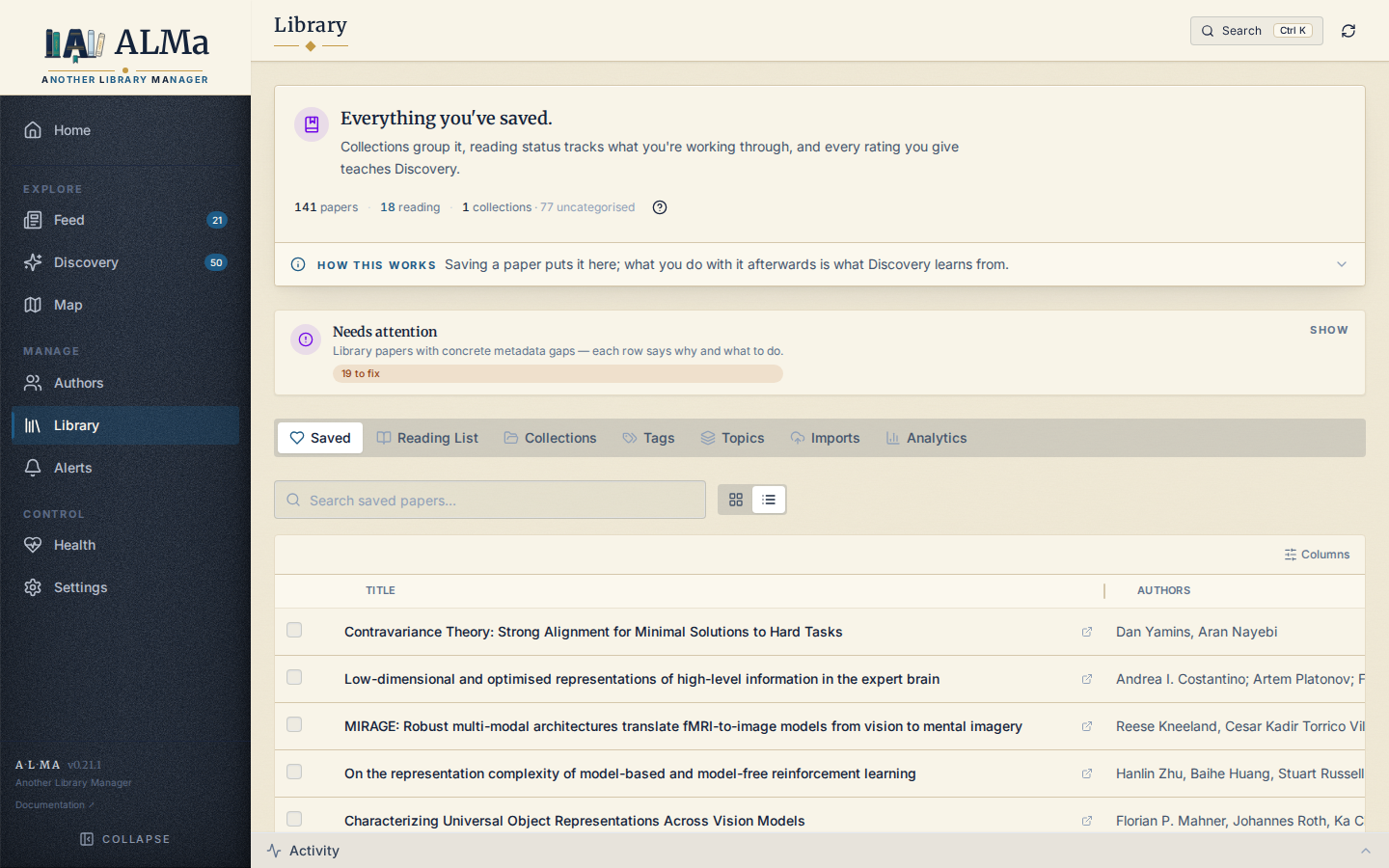
Open http://localhost:8000. The first run lands you on the Library page with no papers, no followed authors, nothing in the Feed. Three things, in order, before the app becomes useful — see the first-run checklist.
Lifecycle commands
docker logs -f alma                  # tail logs (Path 1)
docker compose logs -f alma          # tail logs (Path 2)
docker exec alma /opt/venv/bin/alma --help    # invoke CLI inside container
docker stop alma                     # graceful stop
docker rm -f alma                    # stop + remove (data persists in volumes)
docker volume ls | grep alma         # check what's stored
Backups
The data/ directory is the source of truth. The fastest backup
path is the Settings → Library maintenance → Backup button, which
writes a gzipped, transactionally-consistent SQLite snapshot into
data/backups/scholar_<timestamp>.db.gz. By default, only the last
five snapshots are kept (override with -e ALMA_BACKUP_RETAIN=20).
To pull a snapshot out of the volume to the host:
docker run --rm -v alma-data:/d -v "$PWD":/out alpine \
  cp /d/backups/scholar_<timestamp>.db.gz /out/
See Backups for the full strategy (retention, cron, restore round-trip).
Troubleshooting
Container exits immediately on first run.
Check logs for the actual error: docker logs alma. Common causes:
- OpenAlex 503s during startup probe — usually clears within a minute; the container has a healthcheck that retries.
- Permission errors only happen if you opted into host bind-mounts via an override — see Advanced: host bind-mounts.
Browser shows "broken image" icons in the sidebar.
Pull :latest again — versions before v0.9.2 had a static-asset
routing bug where /brand/*.svg returned the SPA index.
docker pull hangs or times out on arm64.
Multi-arch manifests can be slow to fetch over poor networks. Pin
the architecture explicitly:
docker run says "image not found" or "401 Unauthorized".
The package is public; if you see a 401 the most likely cause is a
stale stored credential. Run docker logout ghcr.io and retry.